CLInkedin User Guide
CLInkedin is a desktop app for managing contacts, optimized for use via a Command Line Interface (CLI) while still having the benefits of a Graphical User Interface (GUI). If you can type fast, CLInkedin can get your contact management tasks done faster than traditional GUI apps.
Quick start
Ensure you have Java
17or above installed in your Computer.
Mac users: Ensure you have the precise JDK version prescribed here.Download the latest
.jarfile from here.Copy the file to the folder you want to use as the home folder for your CLInkedin.
Open a command terminal,
cdinto the folder you put the jar file in, and use thejava -jar clinkedin.jarcommand to run the application.
A GUI similar to the below should appear in a few seconds. Note how the app contains some sample data.
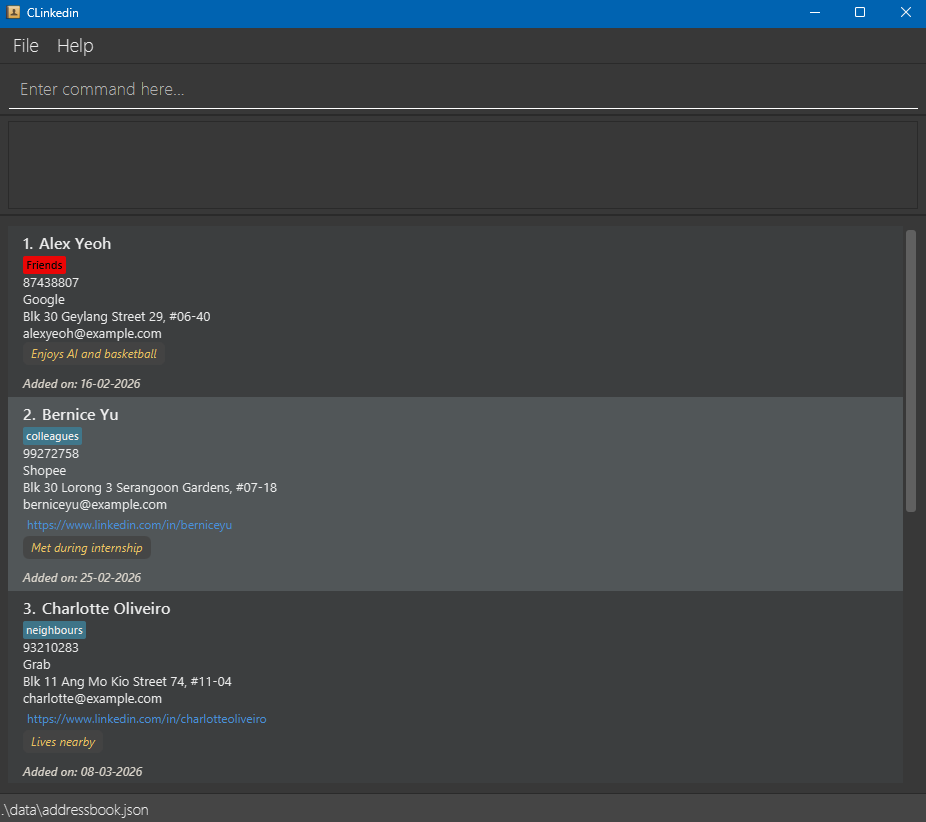
Type the command in the command box and press Enter to execute it. e.g. typing
helpand pressing Enter will open the help window.
Some example commands you can try:list: Lists all contacts.add n/John Doe p/98765432 e/johnd@example.com a/John street, block 123, #01-01: Adds a contact namedJohn Doeto CLInkedin.delete 3: Deletes the 3rd contact shown in the current list.clear: Deletes all contacts.exit: Exits the app.
Refer to the Features below for details of each command.
Features
Notes about the command format:
Words in
UPPER_CASEare the parameters to be supplied by the user.
e.g. inadd n/NAME,NAMEis a parameter which can be used asadd n/John Doe.Items in square brackets are optional.
e.gn/NAME [t/TAG]can be used asn/John Doe t/friendor asn/John Doe.Items with
… after them can be used multiple times including zero times.
e.g.[t/TAG]…can be used ast/friend,t/friend t/familyetc.Parameters can be in any order.
e.g. if the command specifiesn/NAME p/PHONE_NUMBER,p/PHONE_NUMBER n/NAMEis also acceptable.Extraneous parameters for commands that do not take in parameters (such as
help,list,exit,sortcomandclear) will be ignored.
e.g. if the command specifieshelp 123, it will be interpreted ashelp.If you are using a PDF version of this document, be careful when copying and pasting commands that span multiple lines as space characters surrounding line-breaks may be omitted when copied over to the application.
Viewing help : help
Shows a message explaining how to access the help page.

Format: help
Adding a contact: add
Adds a contact to CLInkedin.
Format: add n/NAME p/PHONE_NUMBER e/EMAIL a/ADDRESS [c/COMPANY] [l/LINK] [r/REMARK] [t/TAG]…
Input constraints:
- Name
- Contains only letters, spaces, apostrophes (
') and hyphens (-) - Maximum 100 characters
- Contains only letters, spaces, apostrophes (
- Company
- Contains only letters, numbers, spaces,
. , & - - Maximum 50 characters
- Contains only letters, numbers, spaces,
- Address
- Must not contain
/or@ - Must not contain multiple consecutive spaces
- Maximum 100 characters
- Must not contain
- Link
- Must start with 'http://' or 'https://'
- Remark
- Must not contain
/ - Maximum 200 characters
- Must not contain
- Tag
- Must be alphanumeric (letters and numbers only)
- Maximum 20 characters
- Case-sensitive
Tip: A contact can have any number of tags (including 0)
Examples:
add n/John Doe p/98765432 e/johnd@example.com a/John street, block 123, #01-01add n/Betsy Crowe t/friend e/betsycrowe@example.com a/Pasir Ris Drive c/Google r/Follow up next week p/1234567 t/teacher
Listing all contacts : list
Shows a list of all contacts in CLInkedin.
Format: list
Editing a contact : edit
Edits an existing contact in CLInkedin.
Format: edit INDEX [n/NAME] [p/PHONE] [e/EMAIL] [a/ADDRESS] [c/COMPANY] [l/LINK] [r/REMARK] [t/TAG]…
Each field must still follow its respective input constraints (refers to input constraints in Add command section above for details).
- Edits the contact at the specified
INDEX. The index refers to the index number shown in the displayed contact list. The index must be a positive integer 1, 2, 3, … - At least one of the optional fields must be provided.
- Existing values will be updated to the input values.
- When editing tags, the existing tags of the contact will be removed i.e adding of tags is not cumulative.
- You can remove all the contact’s tags by typing
t/without specifying any tags after it. - You can clear the company or remark field by typing
c/orr/without specifying any value.
Examples:
edit 1 p/91234567 e/johndoe@example.com:Edits the phone number and email address of the 1st contact to be91234567andjohndoe@example.comrespectively.edit 2 n/Betsy Crower t/Edits the name of the 2nd contact to beBetsy Crowerand clears all existing tags.edit 3 c/ r/Clears both the company and remark fields of the 3rd contact.
Locating contacts by name: find
Finds contacts whose names contain any of the given keywords.
Format: find KEYWORD [;MORE_KEYWORDS]
- The search is case-insensitive. e.g
hanswill matchHans - The order of the keywords matter. e.g.
Hans Bowill not matchBo Hans - Only the name is searched.
- Partial words will be matched e.g.
Hanwill matchHans - Contacts containing the entire keyword will be returned (i.e.
.contains()search). e.g.Hans Bowill returnHans Bobber, but notHans Lim
Examples:
find JohnreturnsjohnandJohn Doefind alex davidreturnsAlex Davidonlyfind alex; yureturnsAlex YeohandBernice Yu
Finding contacts by company: findcom
Finds all contacts whose company name matches any of the given keywords.
Format:
findcom KEYWORD [; KEYWORD]…
- The search is case-insensitive.
e.g.
google,Google,GOOGLEare treated the same. - A contact will be shown if its company contains any of the given keywords.
- Multiple keywords can be provided by separating them with
;.
Examples:
findcom GoogleReturns all contacts whose company contains “Google”.findcom Google; AmazonReturns all contacts whose company contains either “Google” or “Amazon”.findcom fintech; bankReturns all contacts whose company contains either “fintech” or “bank”.
Sorting contacts by company: sortcom
Sorts the currently displayed contact list alphabetically by company name.
Format:
sortcom
- Sorting is case-insensitive.
e.g.
apple,Apple,APPLEare treated the same. - Only the currently displayed list is sorted (e.g. after
findcomortag show). - Contacts without a company are treated as having an empty value and will appear at the top of the list.
- The sorting does not permanently change the original order of contacts.
Examples:
sortcomSorts all currently displayed contacts by company name in alphabetical order.findcom GooglesortcomFirst filters contacts by company “Google”, then sorts the filtered results alphabetically.
Deleting a contact : delete
Deletes the specified contact from CLInkedin.
Format: delete INDEX
- Deletes the contact at the specified
INDEX. - The index refers to the index number shown in the displayed contact list.
- The index must be a positive integer 1, 2, 3, …
- Deleted contacts are not permanently removed immediately.
- Deleted contacts are stored and can be viewed using the
deletedcommand. - Contacts will be permanently removed after 7 days.
Examples:
listfollowed bydelete 2deletes the 2nd contact in CLInkedin.find Betsyfollowed bydelete 1deletes the 1st contact in the results of thefindcommand.
Viewing deleted contacts : deleted
Shows a list of recently deleted contacts.
Format: deleted
- Displays all contacts that were deleted within the last 7 days.
- Each deleted contact includes the date and time it was deleted.
- Contacts that exceed 7 days from deletion will no longer be shown.
Examples:
deleted
Restoring a contact : restore
Restores a contact from the deleted list.
Format: restore INDEX
- Restores the contact at the specified
INDEXfrom the deleted contacts list. - The index refers to the index number shown in the
deletedlist. - The index must be a positive integer 1, 2, 3, …
- The restored contact will be added back to CLInkedin.
- If a tag associated with the contact has been removed or renamed before restoration, the contact will be restored without that tag.
- If restoring the contact results in duplicate phone number or existing contact conflicts, the restore will fail.
- Once restored, the contact will be removed from the deleted list.
Examples:
deletedfollowed byrestore 1
Creating a tag: tag create
Creates a new tag with an optional color.
Format: tag create TAG_NAME [COLOR]
- Creates a tag with the specified
TAG_NAME. - Tag names are case-sensitive (e.g.
friendandFriendare treated as different tags). - Duplicate tag names are not allowed.
- If
COLORis not provided, a default color will be assigned.
Tip: Valid color formats include case-insensitive plain names, or hexadecimal values.
Examples: orange, #ff6688
Examples:
tag create friendtag create colleague bluetag create vip #ff6688
Assigning/Unassigning a tag: tag assign, tag unassign
Assign/remove a tag to/from 1 or multiple contacts at once.
Format: tag assign INDEX[,INDEX]... TAG_NAME, tag unassign INDEX[,INDEX]... TAG_NAME
- Assigns/remove
TAG_NAMEtag to/from multiple contacts. - If the index provided is out of range or negative or zero, an error message will be shown.
- If the tag does not exist, an error message will be shown.
Examples:
tag assign 1 friendtag assign 1,4,6 friendtag unassign 1 friendtag unassign 1,4,6 friend
Deleting a tag: tag delete
Deletes a tag and removes it from all contacts.
Format: tag delete TAG_NAME
- Deletes the tag with the specified
TAG_NAME. - The tag will be removed from all contacts that currently have it.
- Only the specified tag is removed; other tags on the contact remain unchanged.
- If the tag does not exist, an error message will be shown.
Examples:
tag delete friend
Listing all tags: tag list
Shows a list of all tags in CLInkedin.
Format: tag list
Renaming a tag: tag rename
Renames an existing tag and updates all respective contacts with it.
Format: tag rename OLD_TAG_NAME NEW_TAG_NAME
- Renames the tag specified by
OLD_TAG_NAMEto theNEW_TAG_NAME. - The tag will be updated for all contacts that currently have it assigned.
- Note: Tag names cannot contain spaces.
- The old and new tag names cannot be the same.
- If the
OLD_TAG_NAMEdoes not exist, an error message will be shown.
Examples:
tag rename friends closefriendstag rename colleagues coworkers
Adding color to a tag: tag color
Adds a color to a tag.
Format: tag color TAG_NAME COLOR
- Adds a valid color to the specified
TAG_NAME. - A valid color is any case-insensitive plain name, or hexadecimal value.
- If the tag does not exist, an error message will be shown.
- If the color is invalid, an error message will be shown.
Examples:
tag color friends bluetag color coworker #343434
Filter contacts by tag: tag show
Show contacts that have a specific tag.
Format: tag show TAG_NAME
- The list will be filtered to show contacts that have
TAG_NAME. - Filters based on a single tag only.
- If the tag does not exist, an error message will be shown.
Examples:
tag show friendstag show coworkers
Clearing all entries : clear
Clears all entries from CLInkedin.
Format: clear
Exiting the program : exit
Exits the program.
Format: exit
Saving the data
CLInkedin data are saved in the hard disk automatically after any command that changes the data. There is no need to save manually.
Editing the data file
CLInkedin data are saved automatically as a JSON file [JAR file location]/data/addressbook.json. Advanced users are welcome to update data directly by editing that data file.
Caution:
If your changes to the data file makes its format invalid, CLInkedin will discard all data and start with an empty data file at the next run. Hence, it is recommended to take a backup of the file before editing it.
Furthermore, certain edits can cause CLInkedin to behave in unexpected ways (e.g., if a value entered is outside the acceptable range). Therefore, edit the data file only if you are confident that you can update it correctly.
FAQ
Q: How do I transfer my data to another Computer?
A: Install the app in the other computer and overwrite the empty data file it creates with the file that contains the data of your previous CLInkedin home folder.
Q: Why does sortcom not sort all contacts after using tag show?
A: sortcom sorts only the currently displayed contact list. After tag show, the list is filtered, so only that subset is sorted. Use list first to sort all contacts.
Known issues
- When using multiple screens, if you move the application to a secondary screen, and later switch to using only the primary screen, the GUI will open off-screen. The remedy is to delete the
preferences.jsonfile created by the application before running the application again. - If you minimize the Help Window and then run the
helpcommand (or use theHelpmenu, or the keyboard shortcutF1) again, the original Help Window will remain minimized, and no new Help Window will appear. The remedy is to manually restore the minimized Help Window.
Command summary
| Action | Format, Examples |
|---|---|
| Add | add n/NAME p/PHONE_NUMBER e/EMAIL a/ADDRESS [c/COMPANY] [l/LINK] [r/REMARK] [t/TAG]… e.g., add n/James Ho p/22224444 e/jamesho@example.com a/123 Clementi Rd t/friend t/colleague |
| Clear | clear |
| Delete | delete INDEXe.g., delete 3 |
| Edit | edit INDEX [n/NAME] [p/PHONE_NUMBER] [e/EMAIL] [a/ADDRESS] [c/COMPANY] [l/LINK] [r/REMARK] [t/TAG]…e.g., edit 2 n/James Lee e/jameslee@example.com |
| Find | find KEYWORD [MORE_KEYWORDS]e.g., find James Jake |
| Find Company | findcom COMPANY [; MORE_COMPANY]e.g., find Google; Amazon |
| Sort Company | sortcom |
| List | list |
| Deleted | deleted |
| Restore | restore INDEXe.g., restore 1 |
| Delete Tag | tag delete TAG_NAMEe.g., tag delete friend |
| Tag Create | tag create TAG_NAME [COLOR]e.g., tag create friend blue |
| Tag Assign | tag assign INDEX[,INDEX]... TAG_NAMEe.g., tag assign 1,4,6 friend |
| Tag Unassign | tag unassign INDEX[,INDEX]... TAG_NAMEe.g., tag unassign 1,4,6 friend |
| Tag List | tag list |
| Tag Rename | tag rename OLD_TAG_NAME NEW_TAG_NAMEe.g., tag rename friends closefriends |
| Tag Color | tag color TAG_NAME COLORe.g., tag color friends red |
| Tag Delete | tag delete TAG_NAMEe.g., tag delete friend |
| Help | help |
Prefix Summary
| Prefix | Field | Description | Example |
|---|---|---|---|
n/ | Name | Contact’s full name | n/John Doe |
p/ | Phone | Phone number | p/98765432 |
e/ | Email address | e/john@example.com | |
a/ | Address | Address or context | a/NUS Computing |
c/ (optional) | Company | Company name | c/Google |
l/ (optional) | Link | URL (e.g., LinkedIn) | l/https://linkedin.com/in/john |
r/ (optional) | Remark | Additional notes | r/Met at career fair |
t/ (optional) | Tag | Tag(s) for categorisation | t/friend |
Prefix usage constraints:
Prefixes must be used without spaces between the prefix and
/.Valid:
c/Googler/Met at eventInvalid:
c / Google
r / Met at event
If a prefix is written incorrectly (e.g., with spaces), it may be interpreted as part of another field and lead to unexpected errors.
Fields marked as (optional) (
c/,l/,r/,t/) can be omitted when adding or editing a contact.Each field must still follow its respective input constraints (refers to input constraints in Add command section above for details).
Tip: Each prefix applies only to the value immediately following it. Ensure correct formatting to avoid parsing errors.